
Text, titles & templates
Add titles and lower-thirds, animate them, bring in your own fonts, and speed up recurring formats with reusable templates. Stickers round things out for social-style edits.
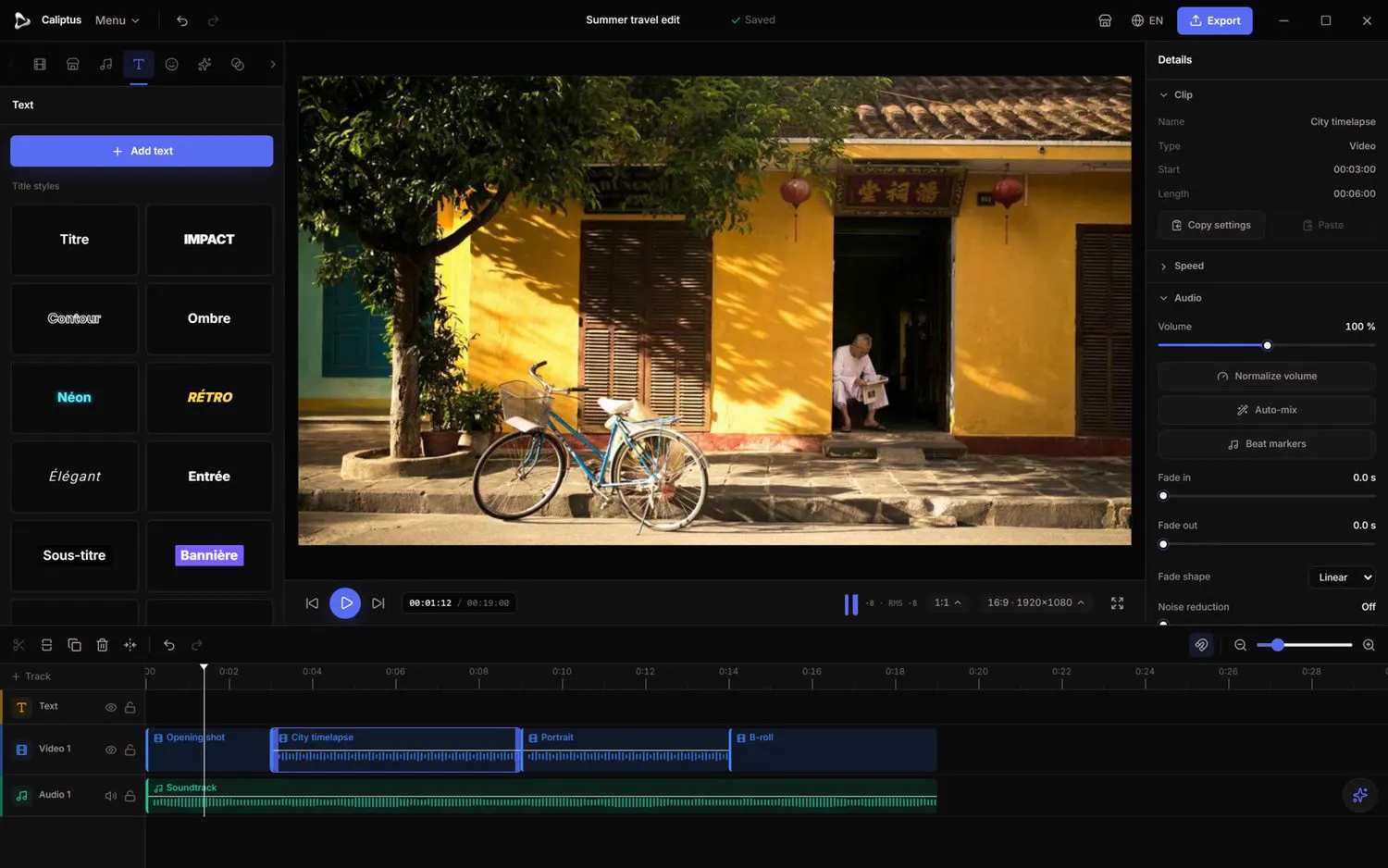
Add text and title styles
Left panel › Text
Drop a title onto the timeline and pick from ready-made title styles.
- Open the Text tab and click Add text.
- Choose a title style, then edit the wording directly.
- Set size and color, and position it in the preview.
Import your own fonts
Left panel › Text › Import a font
Use brand or custom fonts by importing them into the project.
- Click Import a font (.ttf / .otf).
- Pick the font file; it becomes available for your titles.
If a project is opened on a machine that is missing a font, text falls back to another font and the pre-export checks warn you.
Text animations
Inspector › Entrance / Exit animation
Give titles motion with entrance and exit animations, plus a karaoke style for captions.
- Select a text clip.
- Choose an Entrance animation (fade, slide, pop, rise, fly, zoom, spin, bounce and more) and an Exit animation.
- For subtitles, pick a Karaoke style so the current word highlights in time.
Templates
Left panel › Templates
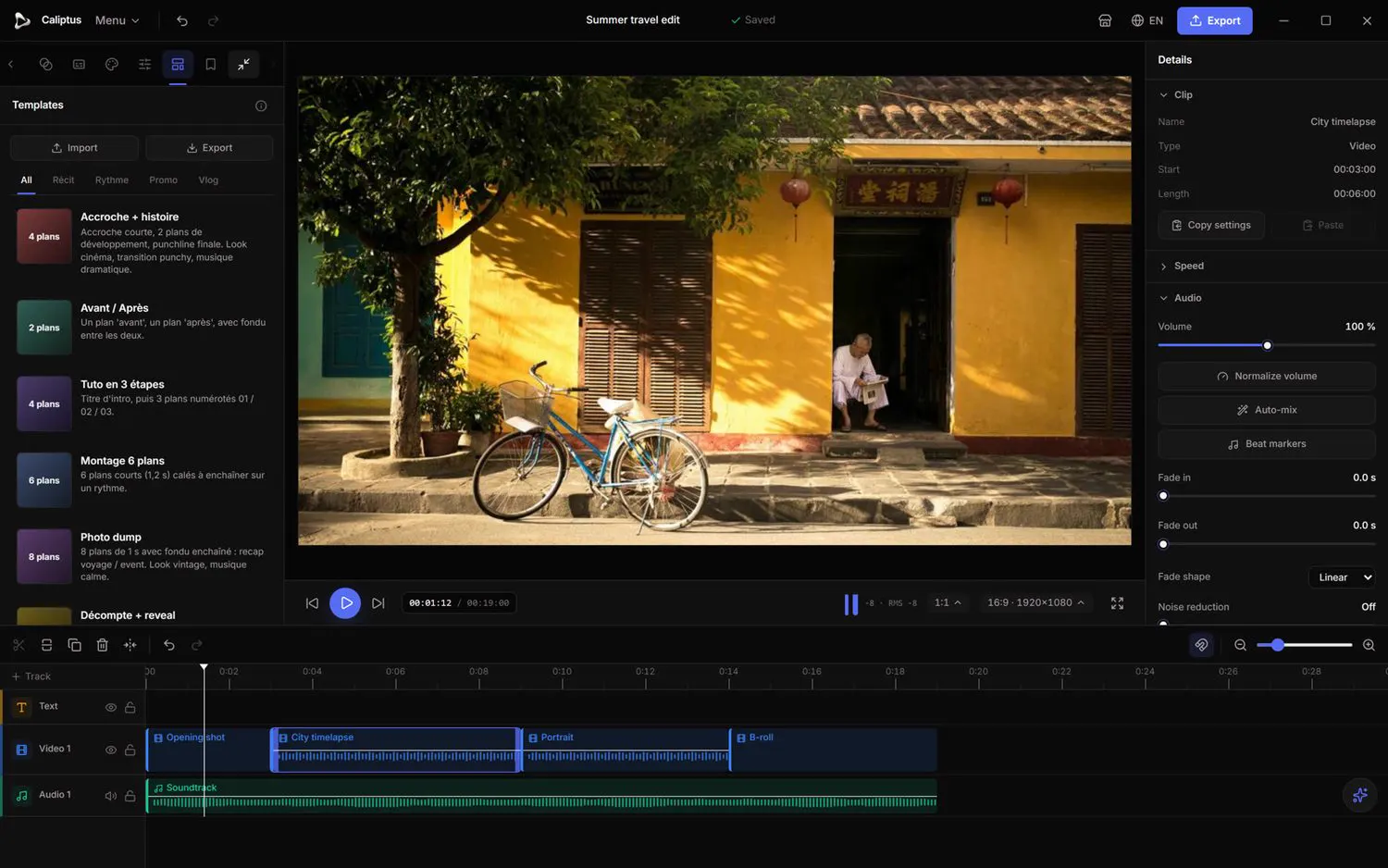
Templates place video slots and titles in a preset layout, so you just fill in your footage.
- Open the Templates tab and click a template to add it: it places video slots plus titles.
- Drag your videos from the Media library onto the slots; each is trimmed to the slot's length.
- Set where in the video the slot starts, then place it.
Save your own arrangement of text clips as a template (.cftemplate) from the right-click menu, and import templates others share.
Stickers
Left panel › Stickers
Add graphic stickers for social-style overlays.
- Open the Stickers tab.
- Click Add sticker to drop one onto the timeline, then position it in the preview.