
Audio
Great audio is half the edit. Add music and sound effects, then clean up, balance and polish every clip. Library content lives in the Audio tab; per-clip processing lives in the Inspector's Audio section when a clip is selected.
Music, sound effects and imports
Left panel › Audio
Reach for royalty-free music, a library of sound effects, or import your own audio.
- Open the Audio tab.
- Browse Royalty-free music by mood (Calm, Ambient, Upbeat, Dramatic) or Sound effects by category (whoosh, pop, riser, impact, beep, click).
- Or click Import audio to add your own tracks.
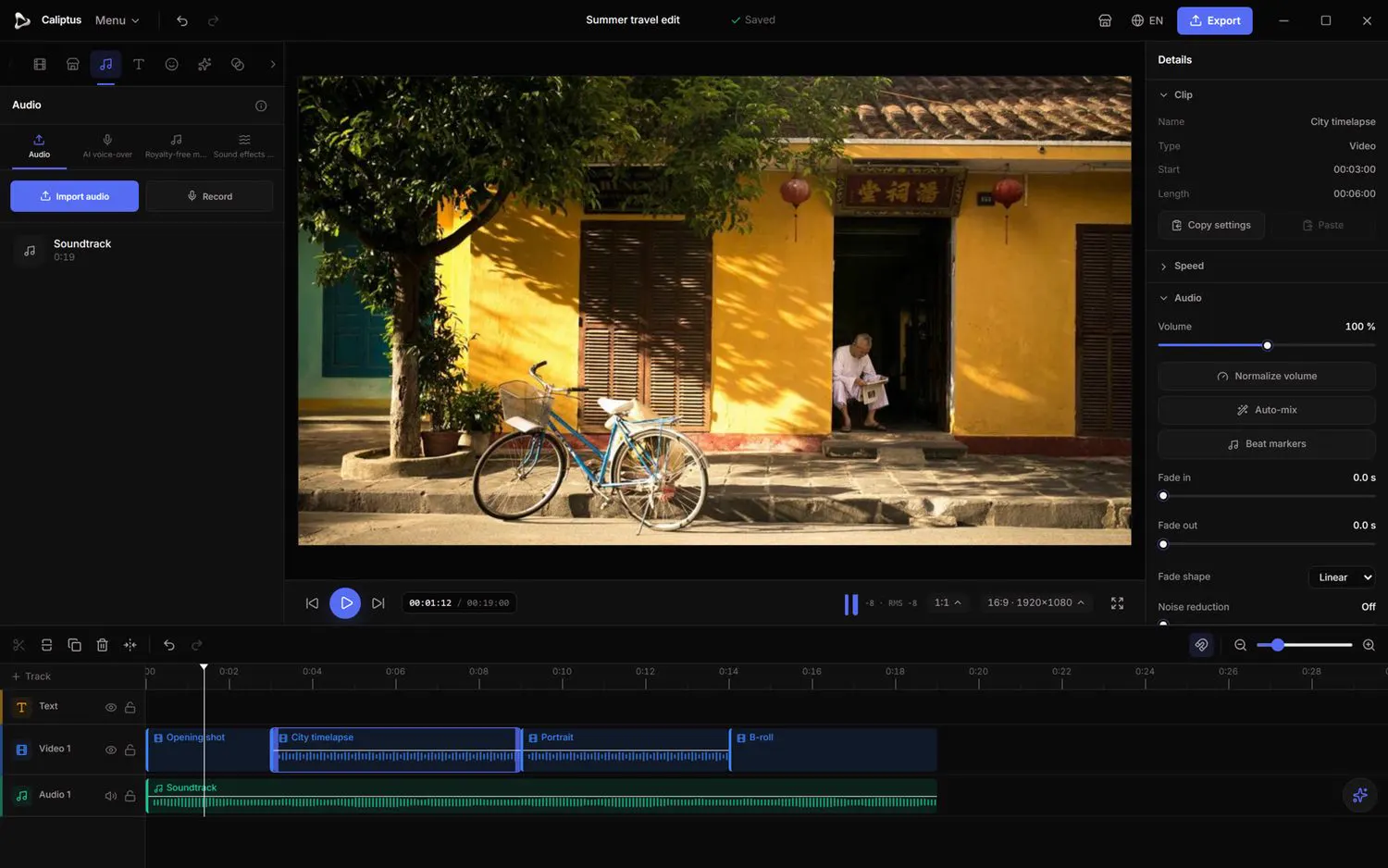
Volume, fades and pan
Inspector › Audio
Balance a clip's level, ease it in and out, and place it in the stereo field.
- Select an audio or video clip and open Audio in the Inspector.
- Set the Volume, and add Fade in / Fade out (Linear or Smooth shape).
- Use Pan to move the sound left or right, and Normalize to bring the peak just below clipping.
You can also drag the fade handles directly on the clip in the timeline.
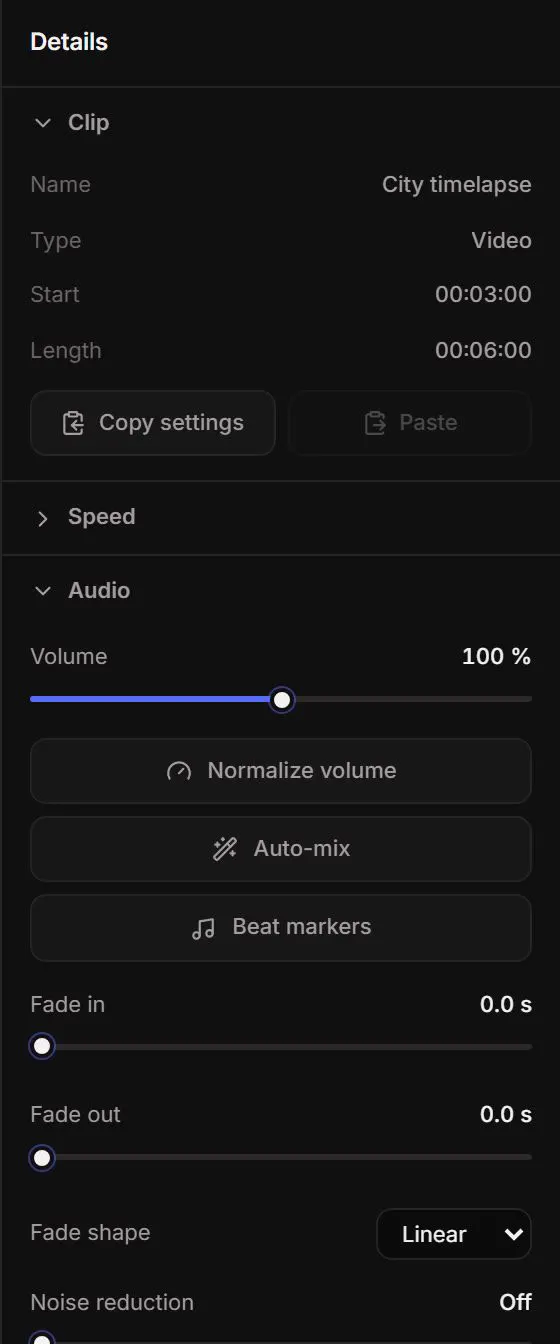
Clean up noisy audio
Inspector › Audio
Remove hiss, hum and background noise, or strip vocals from a music track.
- Use Noise reduction for general background noise.
- Use Clear voice (AI) to strongly remove background noise from speech.
- Use Isolate music to remove centered vocals and keep the instrumental.
EQ, dynamics and effects
Inspector › Audio
Shape tone and dynamics with a full set of audio processors.
- Use the Equalizer (Low, Mid, High) to shape tone, and Pitch to shift it.
- Control dynamics with the Noise gate and Compression.
- Add space with Reverb and Echo.
Auto-mix and ducking
Inspector › Audio · Timeline › track header
Keep the voice clearly above the music, automatically.
- On a clip, use Auto-mix to target -14 LUFS and duck the music under the voice.
- On a track, mark it as Voice (ducks music) and set the ducking amount to lower other tracks whenever it plays.
Sync, detach and beat markers
Inspector › Audio · right-click
Align sound to picture and cut to the music.
- Use Sync audio to align an audio clip to the nearest video by its waveform.
- Use Detach audio to separate a video's sound onto its own track.
- Use Beat markers to detect the tempo and mark every beat, then Cut on beats to split the clip on them.
AI voice-over (text to speech)
Left panel › Audio › AI voice-over
Generate narration from text with an on-device voice.
- Open AI voice-over in the Audio tab.
- Type your script and pick a speed (Slow, Normal, Fast).
- Click Generate; the voice-over is added to the timeline.
This needs a speech voice installed on your system; everything is generated locally.