
Captions & subtitles
Caliptus transcribes speech into subtitles using a local speech-recognition model. Nothing is uploaded: the audio and the transcription stay on your computer. From there you can style, translate, clean up and export your captions.
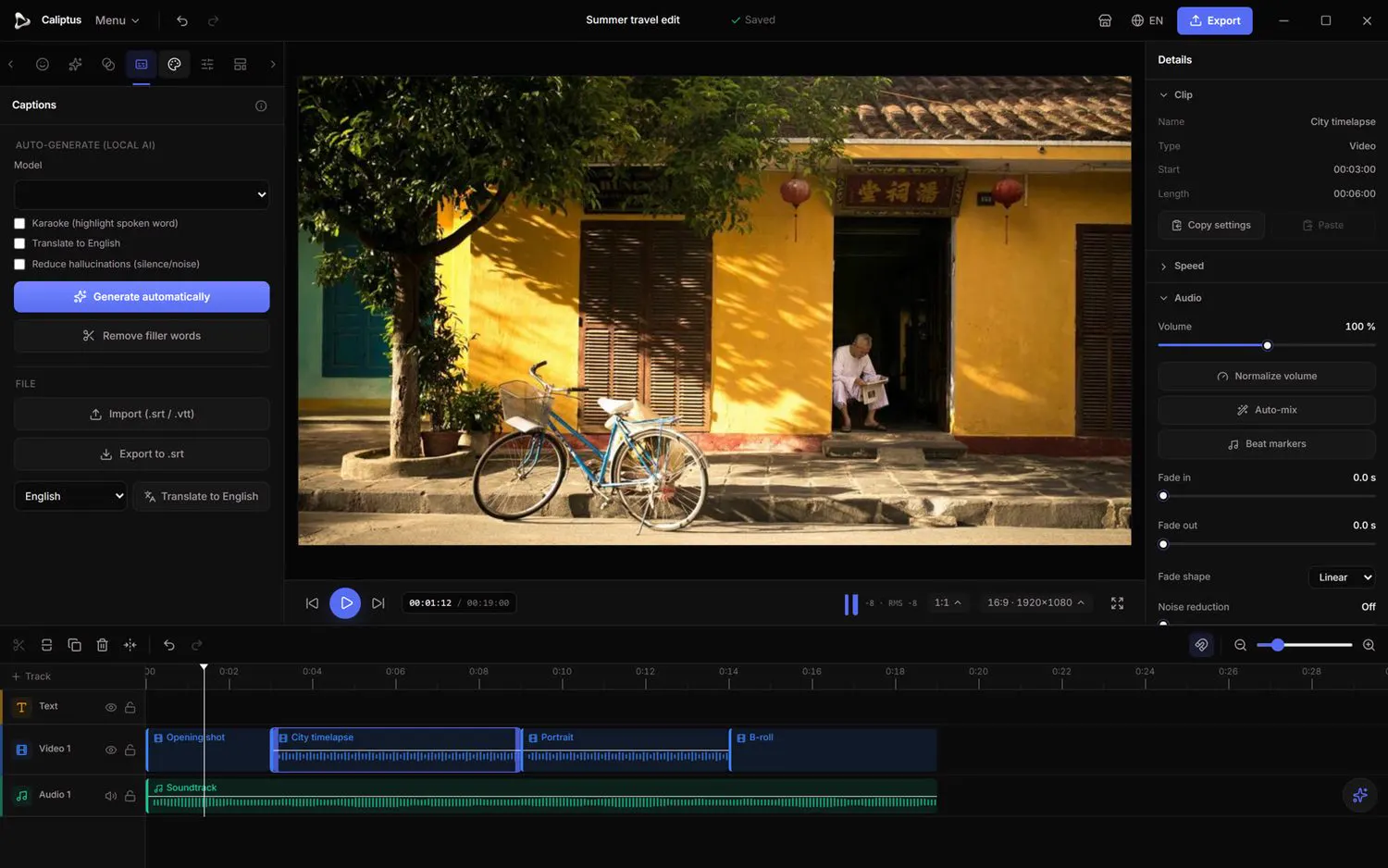
Generate subtitles automatically
Left panel › Captions
Turn spoken audio into timed captions with one click, in many languages.
- Select a clip that has speech and open the Captions tab.
- Pick a Model. The spoken language is detected automatically.
- Click Generate automatically; the captions are created and placed on the timeline.
Captions are generated locally via speech recognition, nothing is sent to a server.
Karaoke highlighting
Left panel › Captions
Word-by-word captions where the current word lights up in time with the speech.
- Enable Karaoke before generating.
- Each word highlights as it is spoken, ideal for social videos.
Translate subtitles
Left panel › Captions
Get English subtitles directly while generating, or translate an existing subtitle track into another language with the local assistant.
- For English subtitles from speech in another language, enable Translate to English before generating, with a model that has no “.en” in its name.
- To translate an existing track, pick a language next to Translate in the File section: a new subtitle track is created with the same timing.
- Translating an existing track uses the local assistant, which must be running. Karaoke highlighting is not kept.
Remove fillers and hallucinations
Left panel › Captions
Tighten the transcript and keep it accurate over silence and noise.
- Use Remove filler words to detect and cut the "um" and "uh" from the selected clip.
- Enable Reduce hallucinations (silence/noise) so the model only transcribes real speech; it downloads a tiny voice-detection model on first use.
Import, export and style
Left panel › Captions › File
Bring in existing subtitles, send yours out, and control how they look.
- Import subtitles from an .srt or .vtt file.
- Export your captions to .srt.
- To change the look, select a subtitle on the timeline, then pick a style in Subtitle styles (right panel, Text section) or set the font, size, color and background.
B-roll ideas
Left panel › Captions › B-roll ideas
Get illustration keywords pulled from your subtitles to guide your cutaways.
- After generating captions, open B-roll ideas.
- Use the suggested keywords to search your footage bank for shots that fit.