
Effects & transitions
Effects change how a clip looks; transitions change how one clip becomes the next. Caliptus ships a large library of both, each with a faithful live preview so you always see the real result before committing.
The effects library
Left panel › Effects
Dozens of effects, from subtle grain and vignette to VHS, glitch, neon, kaleidoscope and light leaks.
- Select a video clip or image.
- Open the Effects tab and browse by category (Trending, Color, Retro, Distort, Basic).
- Click Apply to this clip to add an effect.
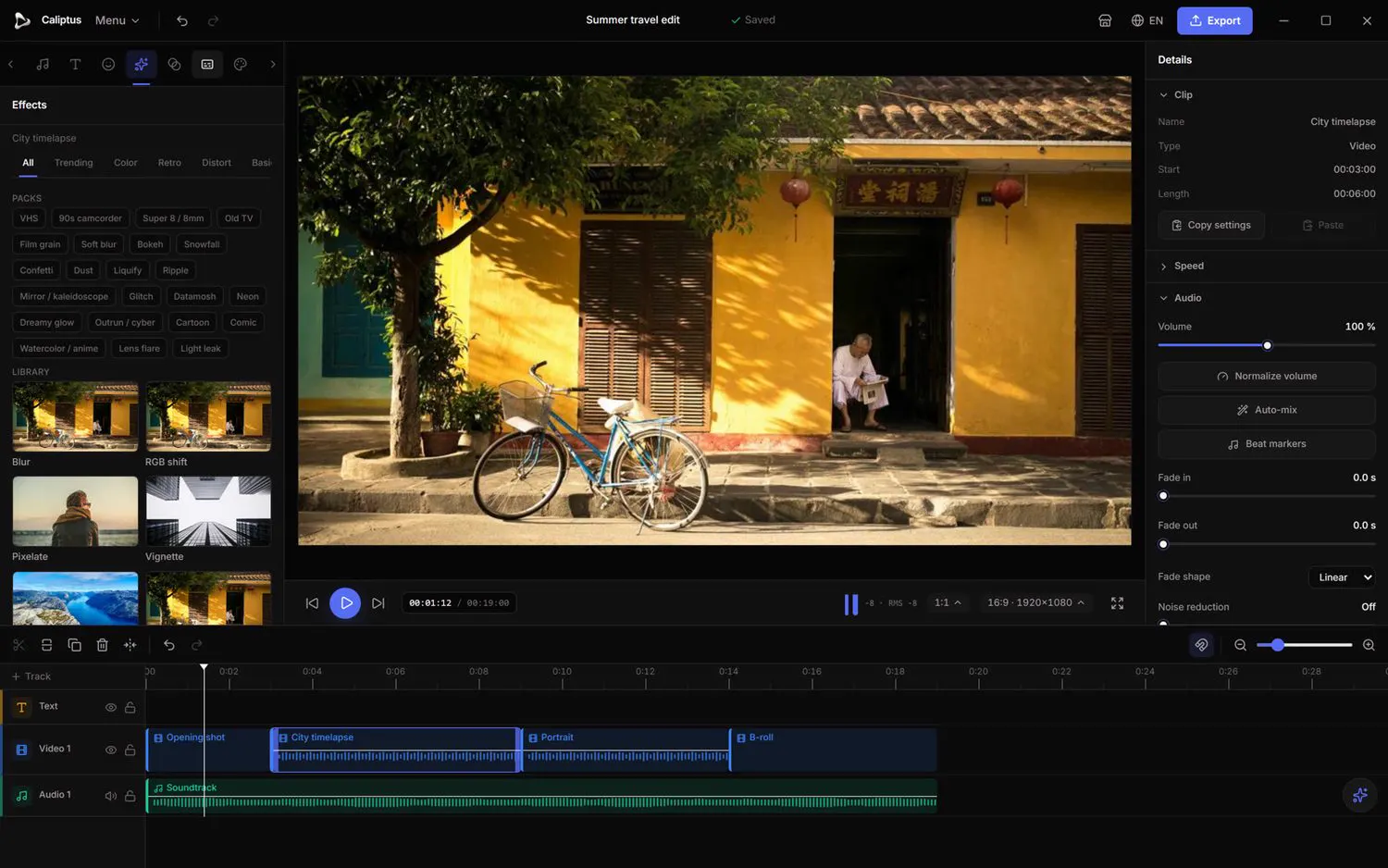
Effect packs
Left panel › Effects › Packs
Packs bundle several effects into a single look you can drop on in one move.
- Switch to the Packs view in the Effects tab.
- Apply a pack to the selected clip.
- Fine-tune or remove individual effects afterwards from the Inspector.
Intensity and animation
Effect settings (selected clip)
Every effect has an intensity you can set once or animate over time.
- With an effect applied, adjust its Intensity.
- Add an intensity keyframe at the playhead to make the effect grow or fade.
- Use Remove animation to go back to a fixed intensity, or Remove to delete the effect.
Filters
Left panel › Filters
One-tap looks for a fast stylistic pass, with an adjustable strength.
- Select a video clip or image.
- Open the Filters tab and pick a filter.
- Set its intensity, or choose None to remove it.
Transitions between clips
Left panel › Transitions
Blend one clip into the next with fades, slides, zooms, wipes and iris effects.
- Open the Transitions tab and browse Basic, Motion and Creative groups.
- Drag a transition onto the cut between two clips in the timeline.
- Every transition shows a true-to-render preview so there are no surprises on export.
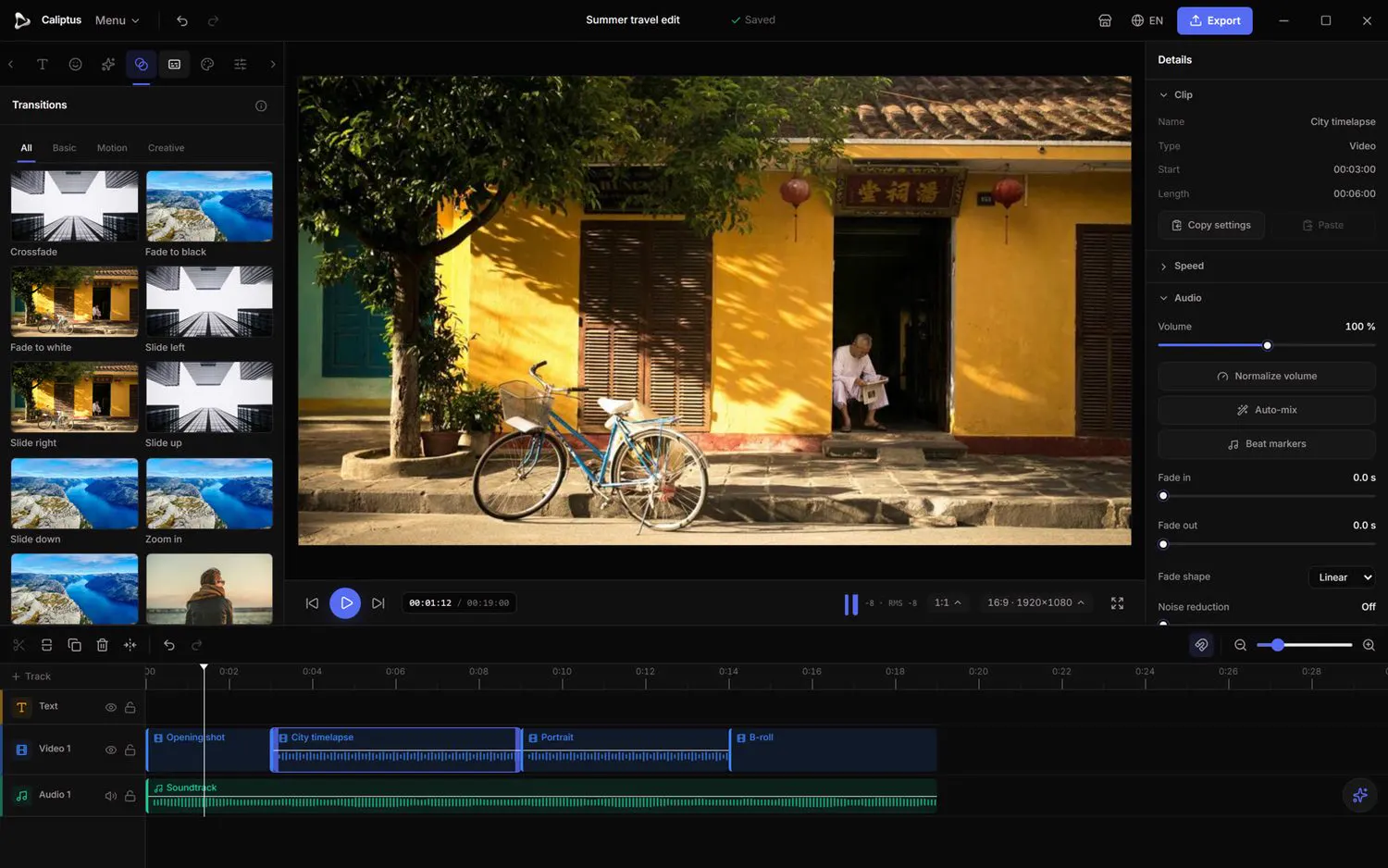
Per-clip transitions and crossfades
Inspector › Transition
Set a transition on a single clip's edge, including audio-aware crossfades.
- Select a clip and open Transition in the Inspector.
- Choose a fade (to black or white), a Crossfade that dissolves into the next clip, or a motion transition (slide, zoom, spin, wipe, iris).
- The crossfade overlaps and dissolves both video and audio for a seamless join.