
Privacy
Does Video Editing Require Internet?
Learn when video editing needs an internet connection, what can run locally, and what changes when AI works on your device.

The short answer
No. Editing itself does not need the internet: cutting clips, adding effects, adjusting color and sound, and rendering a final file can all happen on your computer.
What needs a connection is everything around the editing: installing the software, signing in to an account, downloading assets or AI models, sending files to a cloud service and publishing the finished video. Whether you can work offline depends on how much of that your editor relies on.
What video editing needs an internet connection for
Depending on the editor, the internet is used for:
- Installing and updating the software.
- Activating a license or checking a subscription. Some apps check regularly and stop working after a while without a connection.
- Signing in to an account, when some features require one.
- Running the editor itself, if it works in a web browser. Browser-based editors need a connection for almost everything.
- Storing and syncing media and projects in the cloud.
- Cloud AI features, such as transcription or background removal done on a server. Your audio or video is sent there for processing.
- Online libraries of music, stock footage, templates or fonts that load on demand.
- Collaboration and review with other people.
- Publishing to YouTube, TikTok or Instagram.
None of these is the editing itself. They are services connected to it.
What can happen on your computer
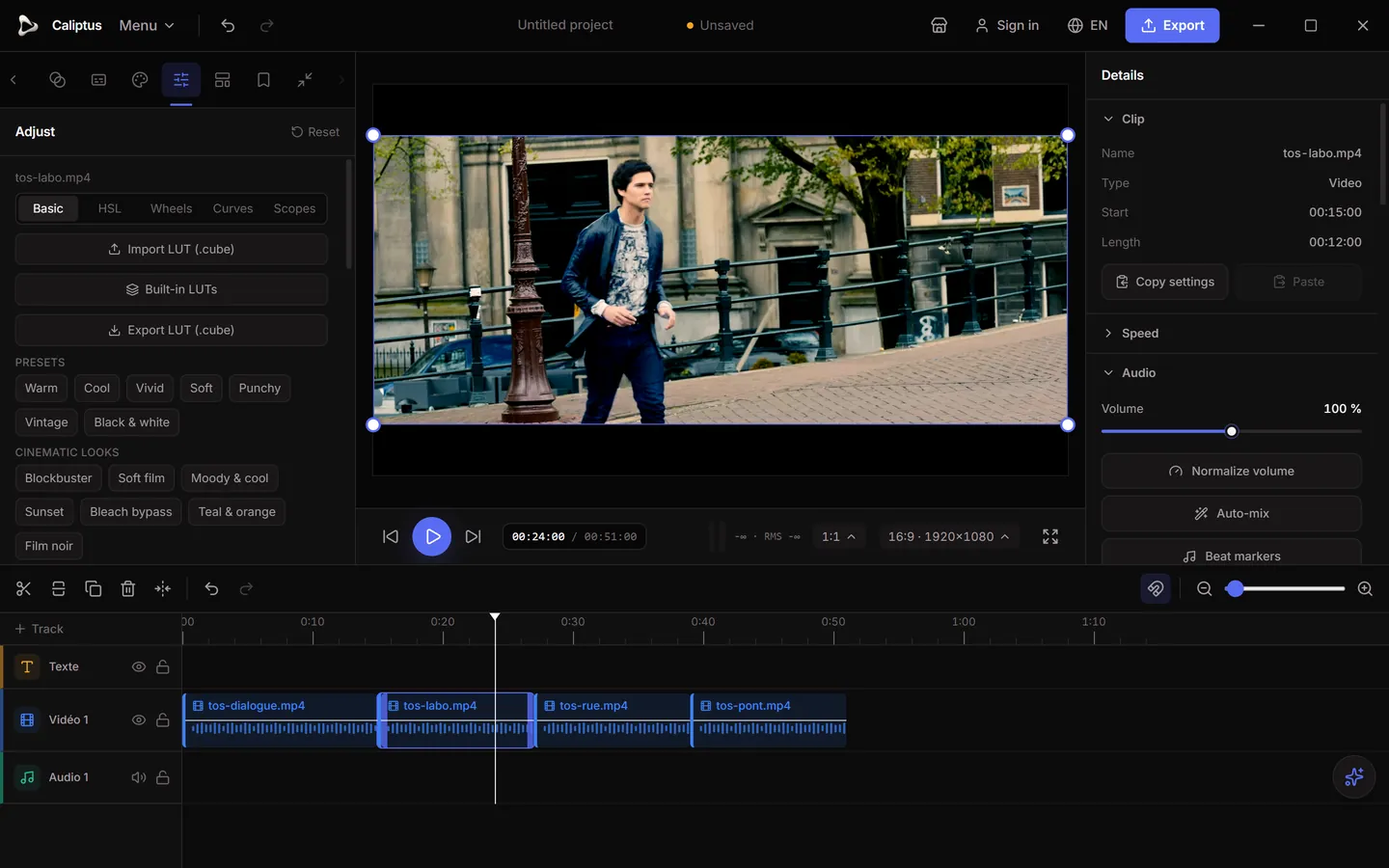
A desktop editor can do the core work without a connection:
- import and organize your media;
- cut and arrange clips on a timeline;
- add transitions, effects and titles;
- correct and grade color;
- mix and clean up audio;
- render the final video file.
For this work, internet speed does not matter. Your computer does: its processor, its graphics chip and the free space on its drive. If your media and project files are stored on your drive, the editor can open them anywhere.
What changes when AI runs on your device
AI features follow one of two models.
Cloud AI sends your audio or video to a server, processes it there and sends the result back. It needs a stable connection for each use, and your file leaves your computer.
Local AI runs the model on your computer. Your file stays where it is, and the feature keeps working without a connection once the model is on your computer. The trade-offs: the model has to be downloaded first, sometimes several hundred megabytes, and processing speed depends on your hardware.
So before choosing an editor, check where each AI feature runs. Our overview of on-device AI tools shows how this works in practice.
An example: when Caliptus uses the internet
Caliptus is the free desktop video editor we are building. Editing and AI run on your computer. Here is when it uses a connection, based on how the software works today:
| Task | Internet needed? |
|---|---|
| Editing, effects, color, audio, rendering the final file | No |
| Noise cleanup, smooth slow motion, automatic reframing, motion tracking, stabilization | No |
| Automatic subtitles, AI cutout, artistic style transfer, the optional AI engine for slow motion | The first time only: the tool downloads its model, then works offline. Subtitle models take 75 to 466 MB, depending on the one you choose |
| Voice-over from text | No: it uses the speech voices installed on your system |
| Exporting | A free account with a verified email. Once you have signed in, export keeps working offline for 14 days after your last connection |
| Marketplace of LUTs, presets and templates | Yes, to browse, install or publish. Installed resources stay on your computer |
| Technical telemetry | Optional, anonymous and off by default |
Your videos and projects stay on your machine. Local editing does not mean the software never talks to a server, though: the account and the marketplace exchange data with ours. Our page on why we edit locally details what stays on your computer.
When a connection is still useful
Even with a local editor, plan a connection for:
- the first use of an AI tool that downloads its model;
- signing in, if your editor requires an account to export;
- getting new music, templates, LUTs or fonts;
- publishing the finished video.
Questions to ask before choosing an editor
- Does it run in a browser or on your computer?
- Where are your media and project files stored?
- Which AI features run on your computer, and which send files to a server?
- Does exporting or licensing need a regular online check? For how long can you work offline?
- Which libraries (music, templates, fonts) only work online?
- Is telemetry on by default, and can you turn it off?
If you need an editor that keeps working away from a connection, see our offline video editor page.
FAQ
Does video editing always require internet?
No. A desktop editor can cut, add effects, adjust color and sound, and render the final file without a connection. Browser-based editors are the exception: they need a connection to work.
Can AI video editing work offline?
Yes, when the AI runs on your computer and its model is already downloaded. Cloud AI features need a connection each time, because the file is processed on a server.
What still needs an internet connection?
Installing the software, signing in to an account, downloading AI models or online assets, cloud storage, collaboration and publishing.
Get Caliptus at launch
Caliptus is in pre-launch and not yet available for download. Join the waitlist to get an email when it opens.
Demo footage: Tears of Steel, © Blender Foundation (mango.blender.org), licensed under CC BY 3.0.